Have you ever wondered if it is possible to use a smart PSD to create product mockups in bulk? Well, it is possible and actually quite easy.
There are quite a few methods to batch process your product mockups that I’ve seen. Many are paid add-ons for Photoshop or features of paid apps, but did you know you can create mockups in bulk for free?
No catch, it really is free. I just found this feature on Photopea and had to share it.
If you don’t own Photoshop, you may have heard of an alternative called Photopea. It is an excellent online photo editing program that is completely free to use. I often recommend it to my customers who don’t use Photoshop and even to those who have been using Photoshop but are looking for a free alternative.
In this tutorial, I am going to show you how to use Photopea to create product mockups in bulk for free and it is so easy.
Start by going to: https://www.photopea.com/
Click on “Open from Computer”
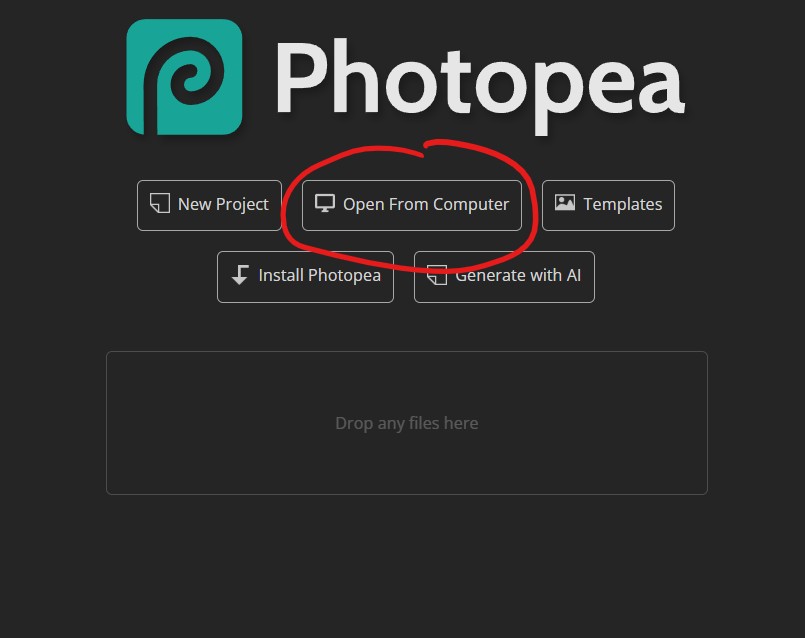
Navigate to where you have saved your mockup and open it up. I’m going to use one of my full wrap tumbler mockups for this tutorial. (Okay, maybe a little bit of a shameless plug here – you can pick up this mockup along with many others on my website- https://spmockups.net/product/20oz-skinny-tumbler-mockup-2/ or at my Etsy Shop – https://www.etsy.com/listing/1867365704)

I have been setting up my full wrap mockups to be bulk mockups friendly, so generally, my files will have the smart object as the first layer. Select the “click icon to add art” layer. Then go to File > Automate > Generate Mockups…
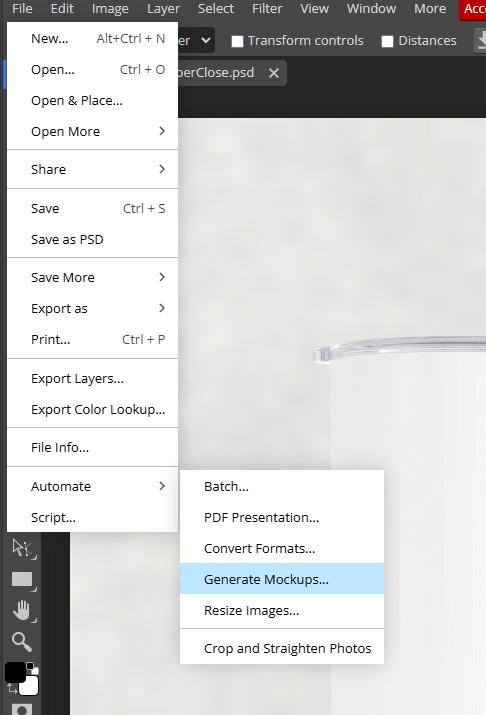
This is going to pop up a little window:
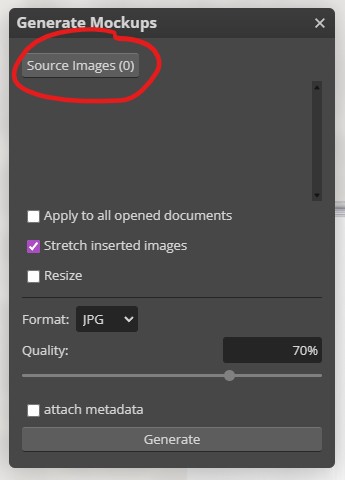
Side note – I haven’t used Bulk Mockups myself, so I am not 100% sure how the inner workings go, but from what I understand, your images are placed in and sized to fit the smallest side (so if your images aren’t the exact size of the smart object there is empty space). In Photopea, you can click the “stretch inserted images” so that they fit the full size of the mockup’s smart object. This is amazing if your template images are a few pixels off from the mockup, it will make your image fit. No more empty space!
Clicking on the “source images” button will open a window and allow you to select as many images as you want. These are the images that will be inserted into the mockup’s smart object.
Here I have selected 20 images that are totally not the right size for the 20oz tumbler, but I’m going to use them anyway and see how they place. So, I select them all and click on “Open”
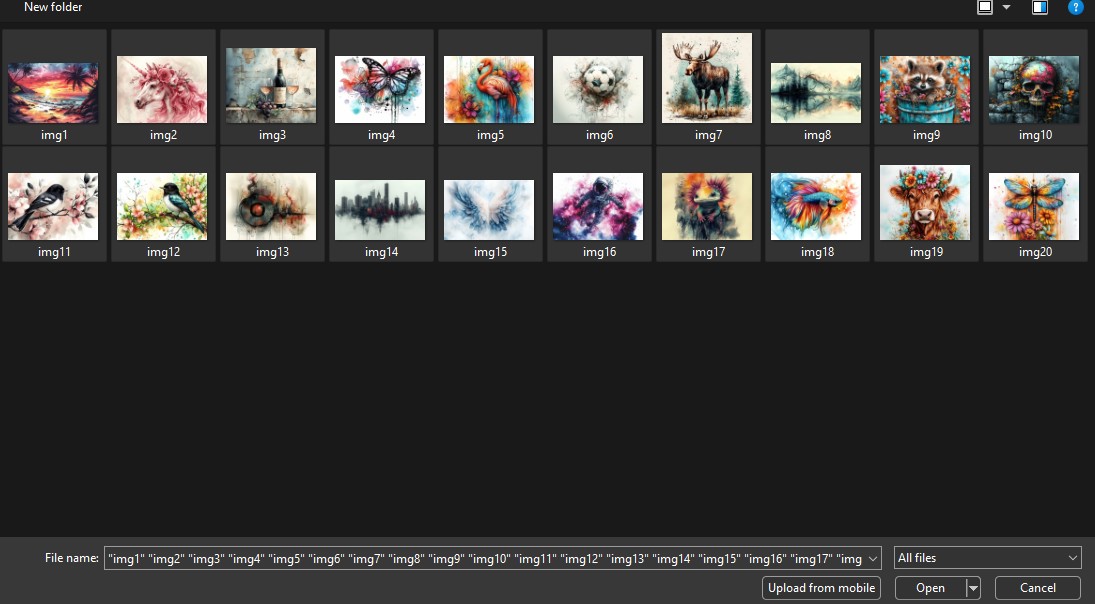
Now you can see a list of your images in the Generate Mockups box:
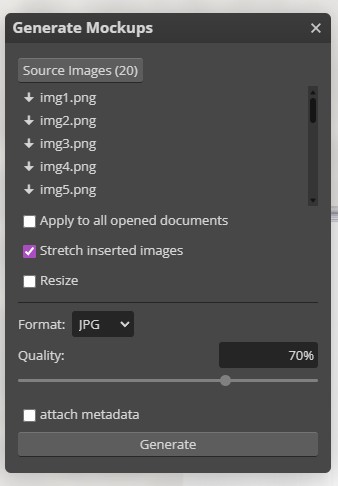
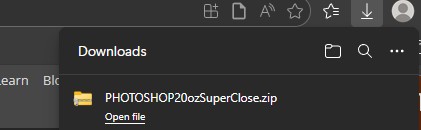
When you are ready click on “Generate”. Be patient as you won’t see any progress bars as it does its work. I loaded in 20 high-res images for this tutorial, and it took about 9 seconds. Once it is done, you will see the download pop up. It will pop up in the same place your downloads usually show up, and it will be a .zip file with the same name as the main mockup file.
Navigate to where the download went and unzip the file. You will see the mockup has saved with each image inserted into it! You can also see that even though my images weren’t all the proper dimensions, it re-sized them to fit both the top to bottom and the left to right space.

And you are done! I believe you can use Photopea’s Bulk Mockup creator to do up to 500 images at once, but you could possibly do even more. Just remember to wait and give it time. Assume it will take 1 second per image you add to it.
Hope you found this helpful. It is such a huge time saver if you have a lot of images to apply to the same mockup.
Follow my Social feeds for more tutorials and my latest mockup releases.