Click the subject below to go directly to specific instructions:
How to add your images:
Step 1: Start by making sure that you have the Elements PSD version of the file open. The file name should start with “ELEMENTS”.
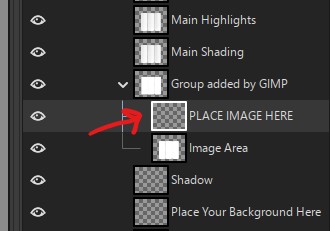
Step 2: Locate the layer that says “PLACE IMAGE HERE” and select it.
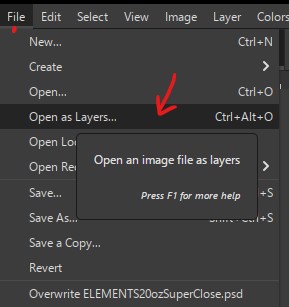
Step 3: Place your image in by going to file > Open as Layers
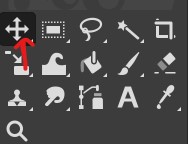
Step 4: Depending on the size of your image, you may need to re-size to fit the image area. To do this, select the scale tool:
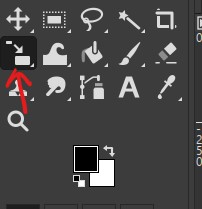
If you don’t see the same icon in this spot, click and hold until you get the flyout menu. Then, select the scale tool.
Click and drag your mouse to re-size your image to fit. Once you are happy with the size, hit ENTER on your keyboard.
Tip: Change back to the move tool to move your image around.
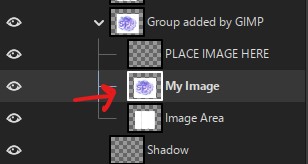
Step 5: With your image placed in where you want it to be, it is time to clip it to the image area. Make sure that your image is directly above the “image area” layer.
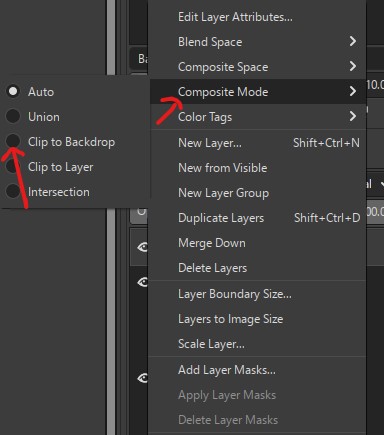
Step 6: Right click on your image, then hover over “Composite Mode”, the select “Clip to Backdrop”. This is how you clip your image to an image area.
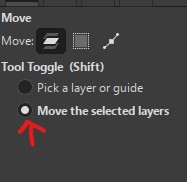
Tip – After you place your image in and clip it to the backdrop, if you want to move your image around to adjust, make sure you have your image’s layer selected and under the move tool, make sure to check “move the selected layer”.
How to change colors (hue/saturation):
Gimp does not currently support hue/saturation adjustment layers. If the file you download pops up a message that says “Adjustment layers are not yet supported and will show up as empty layers” the file uses hue/saturation adjustment layers. While it is not supported, you can still use the file and adjust the colors manually.
Step 1: When you open the file, you will see a green highlighted layer that says “change color”. Some file may have the hue/saturation adjustment layers pre-set to a color and will be named as the color. Since Gimp doesn’t support these layers, you will look for the layer above the green highlighted layer called “Group added by GIMP”.
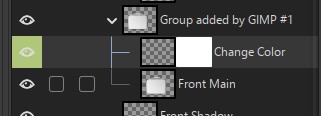
Step 2: Select that layer and then go to Colors > Colorize…
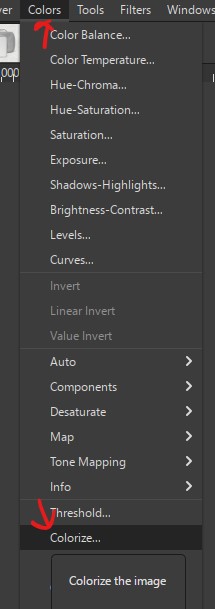
Step 3: This will bring up a new menu that will allow you to change the color. Click on the color bar to bring up the color picker to change the color.
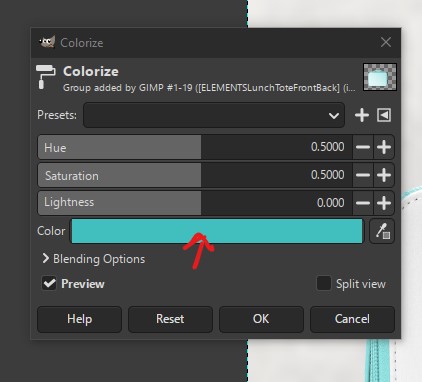
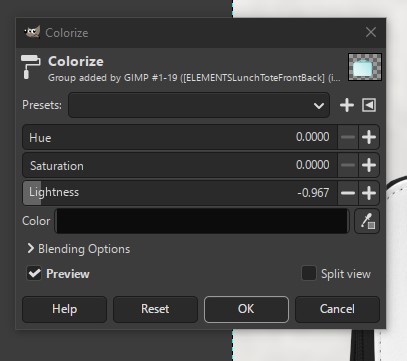
Tip: If you need to achieve a dark grey or black without any color in it, turn the hue and saturation down to 0. Adjust the lightness as needed.
How to change colors (fill layer):
Step 1: Locate the green highlighted layer that says “fill to change color” and select it.
Note – Many time, the optional color areas will be turned off. Make sure that eye icon to the left of the layer shows that it is on.
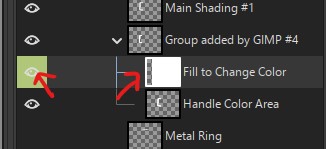
Step 2: Select the Paint Bucket tool and change your foreground color to the color you want to change it to. Make sure that they fill type is set to “FG color fill”.
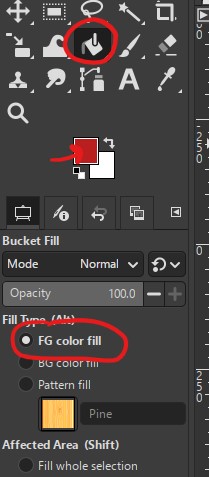
Step 3: With the “fill to change color” layer still selected, click anywhere on the artboard to fill it in with your color.
Tip – Depending on the file and how it is set up, if you are going for a black color, don’t go completely black. Make it just slightly lighter than a pure black:
How to Change Color (Click to Change):
Fill layers are not fully supported in Gimp, so when you open a file that has a “click to change” color layer, you may find that the whole document is filled with a color. This is because Gimp turns on only some of the layers. You can fix this by turning some layers on and/or off.
Step 1: For each fillable color area, you will see three layers. The first is the group added by Gimp, the second is the layer that holds the color and the third is the layer that color is clipped to. If you want to show a color in that area, make sure that all three are turned ON. If you don’t want to show a color in that area, make sure that ALL three are turned off.
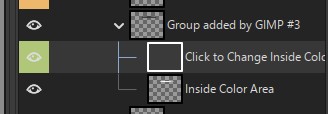
Step 2: To change the color, refer back to the previous color change method “fill layer” above.
How to add your own background:
Step 1: Locate the layer at the bottom of the layer list that says “Place your background here” and select it.

Step 2: Go to File > Open as layers. Select the background you want to add and click place. Resize as needed.