Description
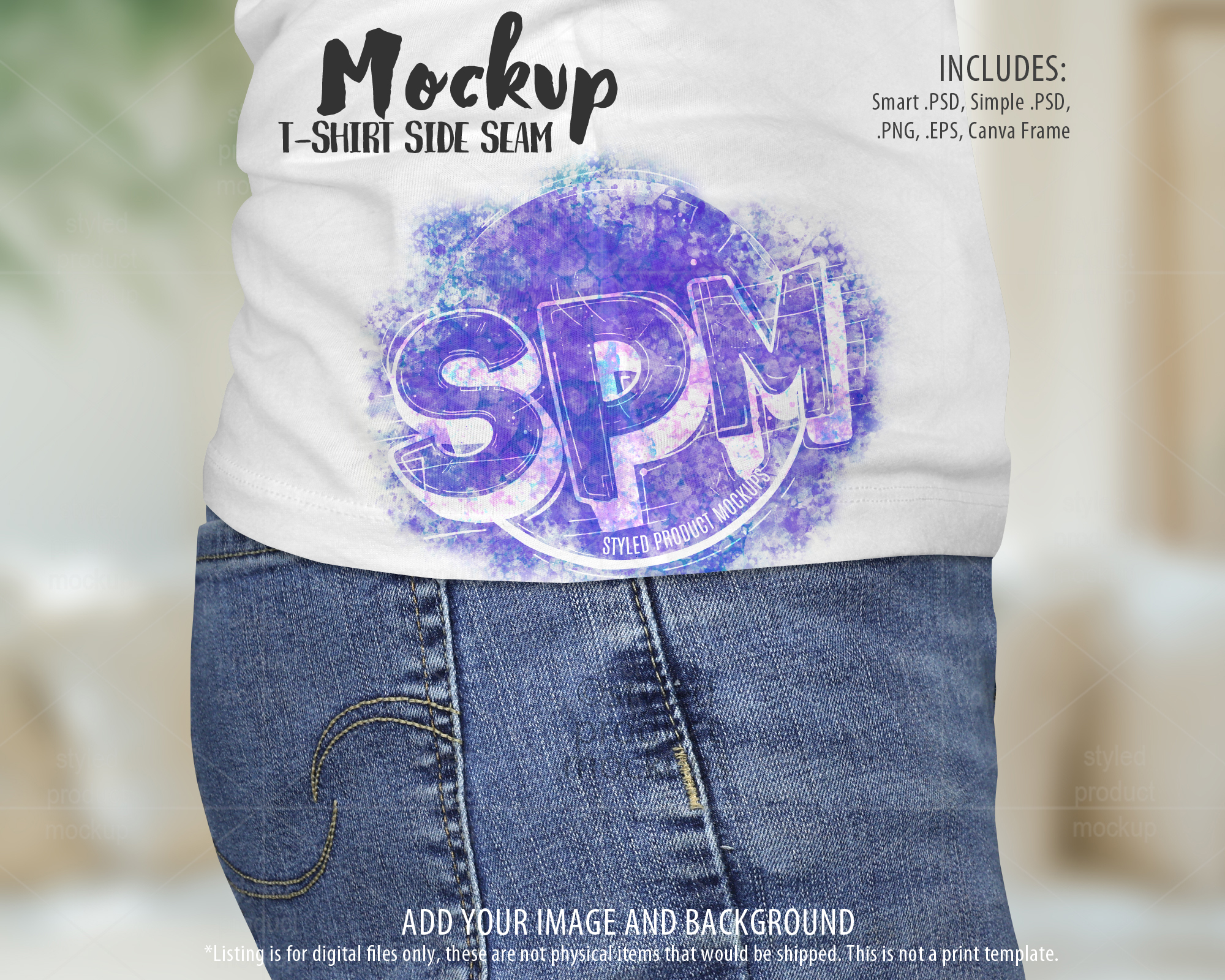
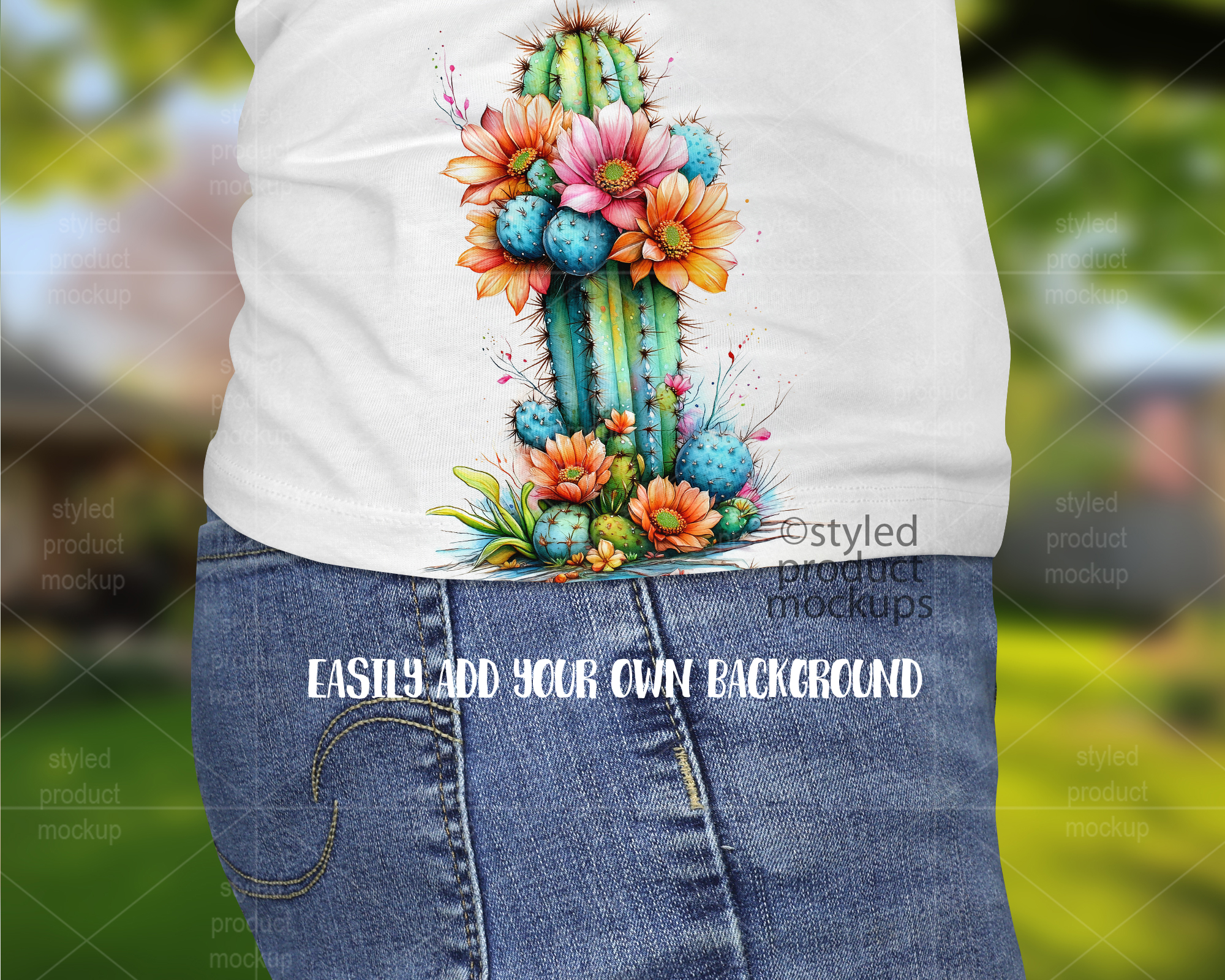
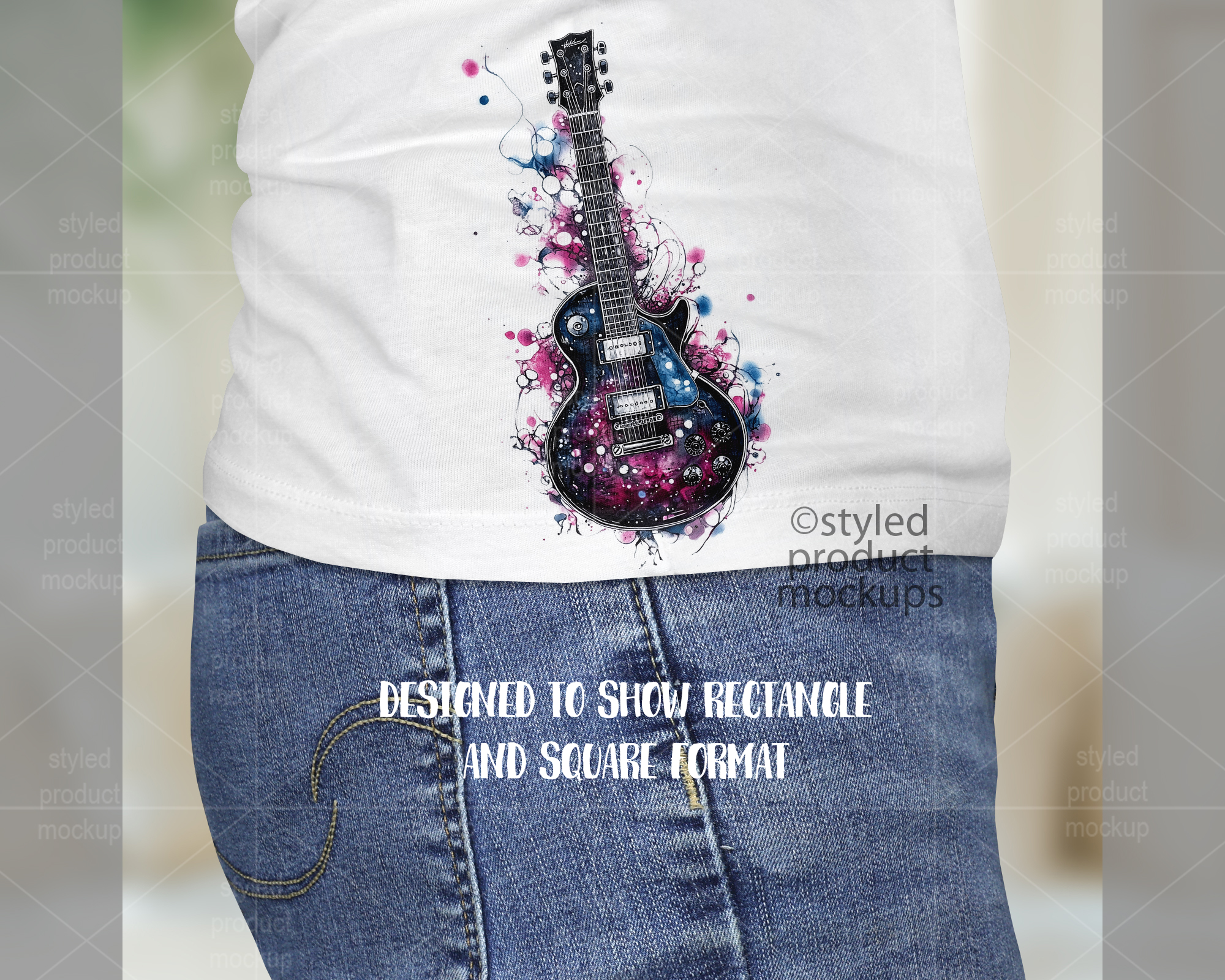
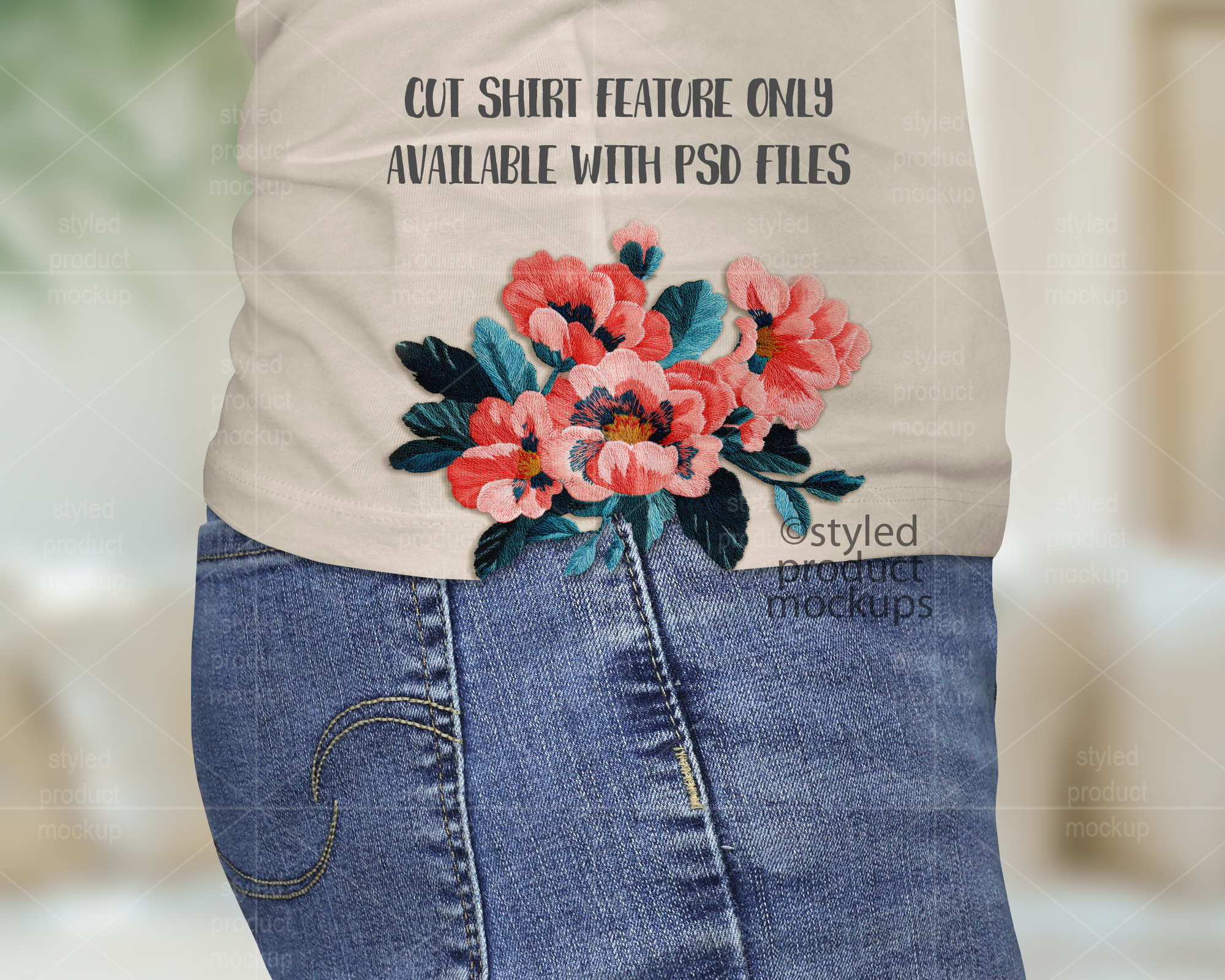
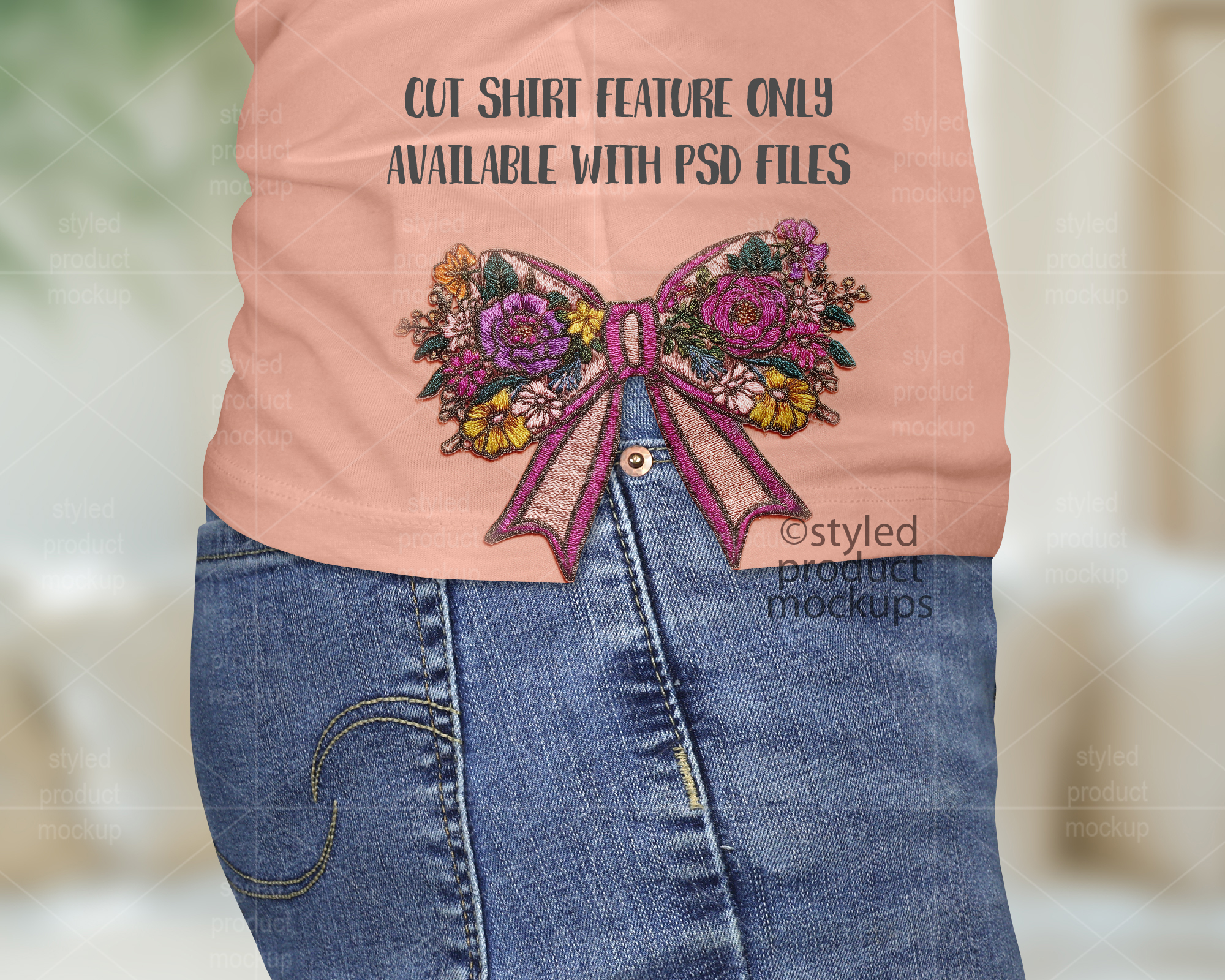
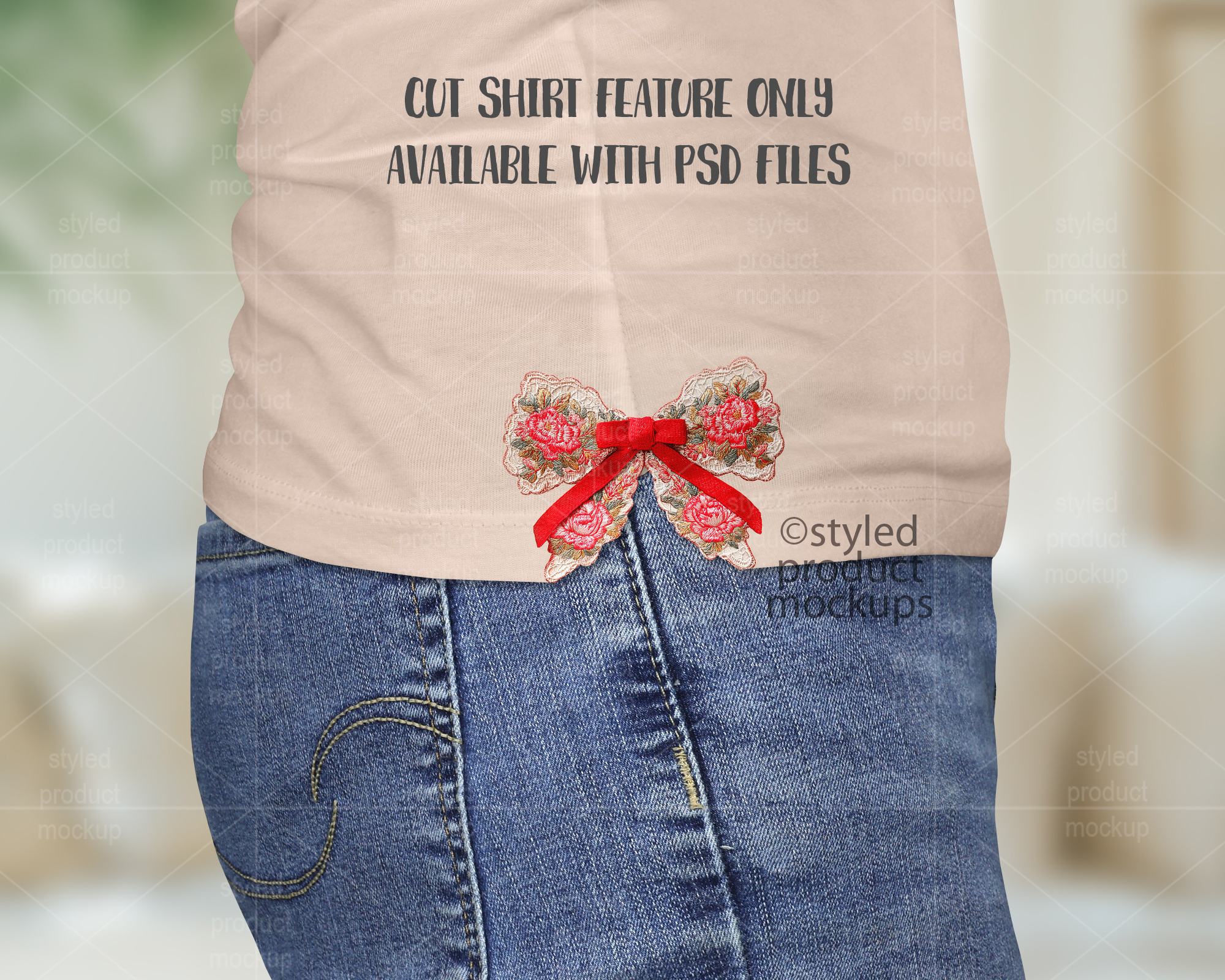
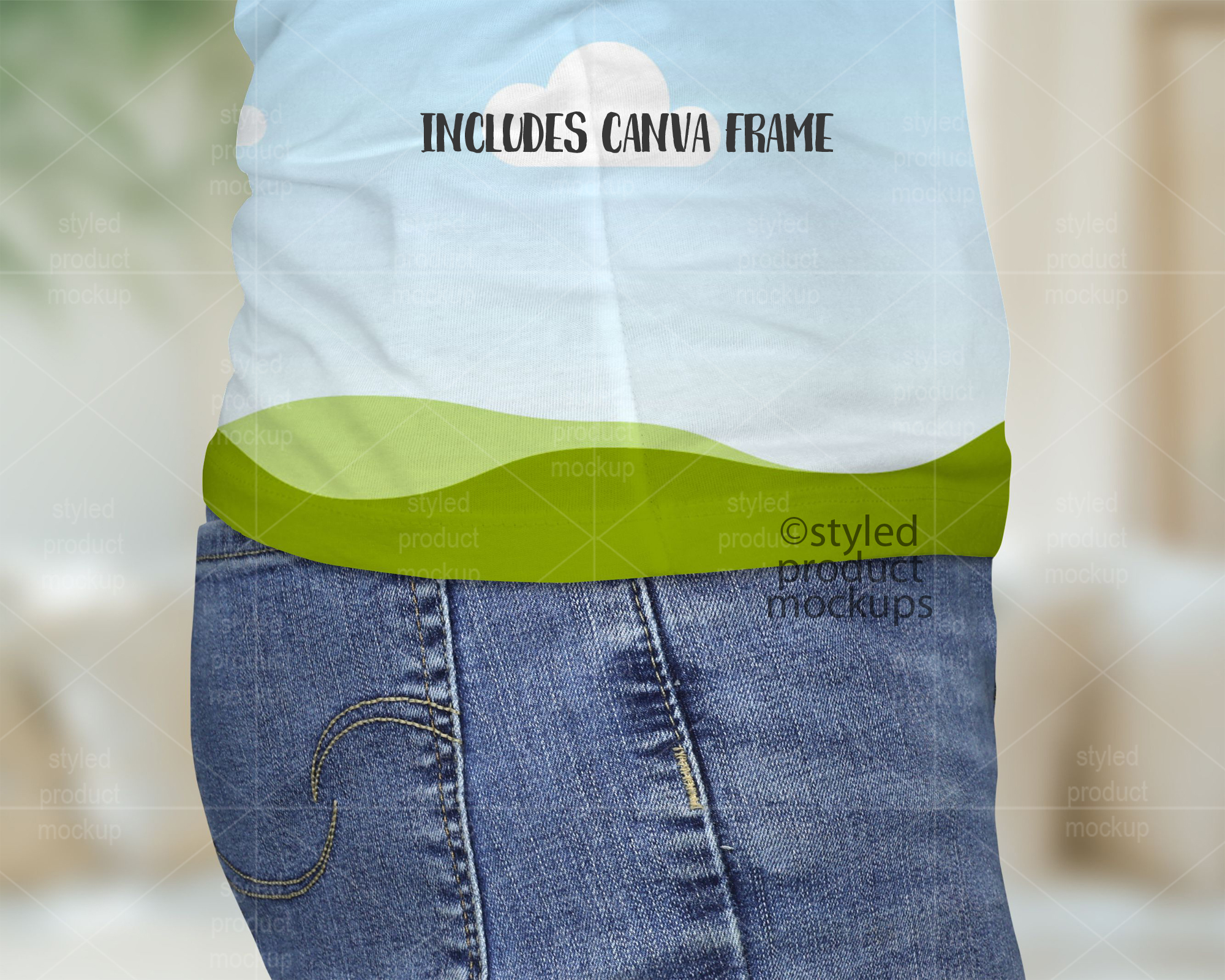
This listing is a mock-up that features the side seam view of a t-shirt. Give a professional touch to your shirt designs without the hassle of photographing each one. This styled product mockups template is ready to use, simply add in your own art files and background.
Download includes the following file formats:
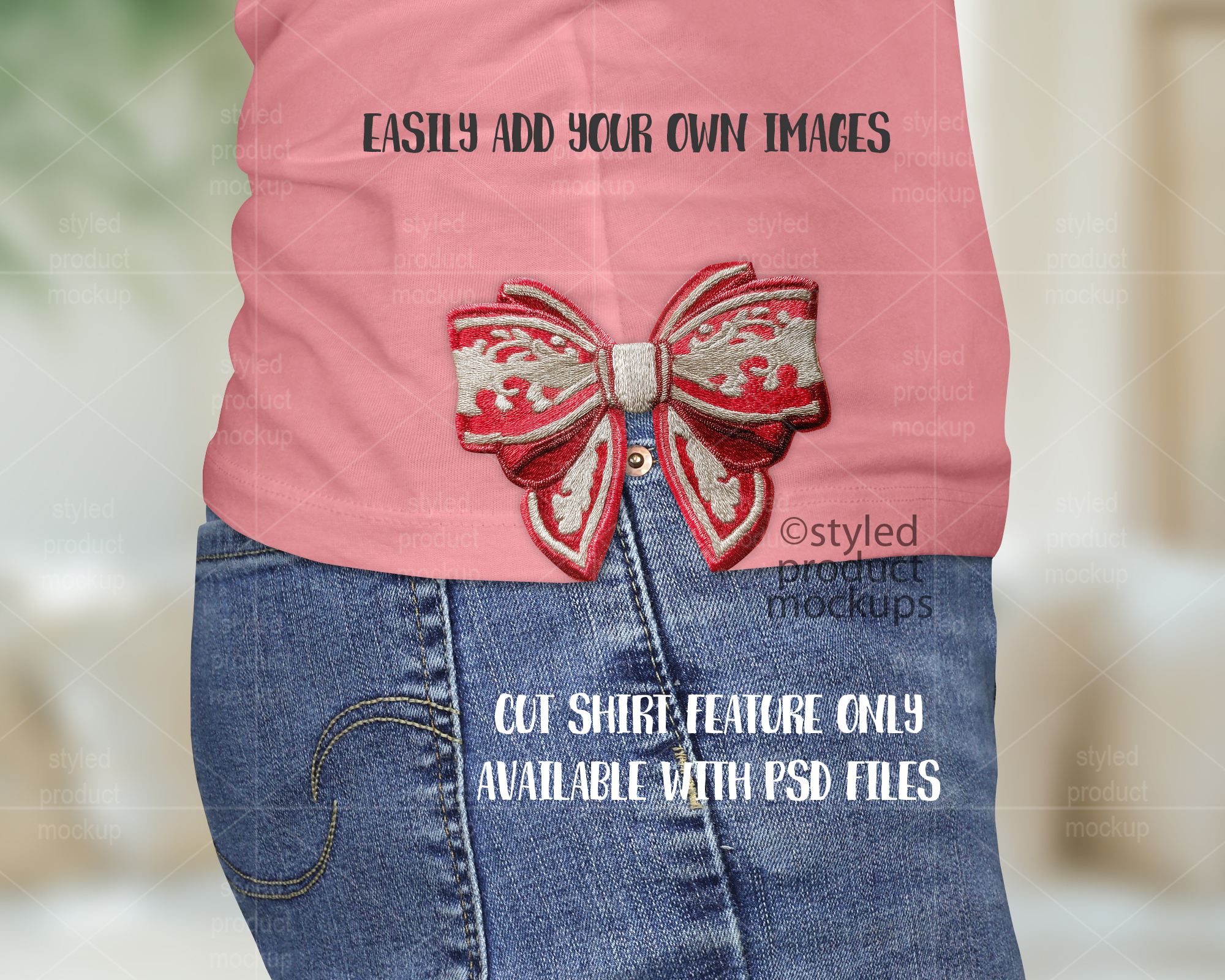
– Photoshop CS5+/CC, Photopea .PSD file. File is set up with Smart Objects. Simply double click the layers marked in Red to paste your image in and you are done! Main layers are separate from background so you can add your own background in. Note for applique images – The smart object shows the seam line so you can move your image in place. After you save the smart object, you will need to manually cut out from the “image area” layer where you want the shirt cut to match the shape of your applique. The jeans are on a separate layer below the shirt so they will show up wherever you cut the shirt out.
– Simplified .PSD for use in Elements or Affinity Photo. Simply place your image into the layer that says “Place Image Here”, then resize and adjust to fit the image area’s clipping mask. Main layers are separate from background so you can add your own background in. Note for applique images – The smart object shows the seam line so you can move your image in place. After you save the smart object, you will need to manually cut out from the “image area” layer where you want the shirt cut to match the shape of your applique. The jeans are on a separate layer below the shirt so they will show up wherever you cut the shirt out. You will need to manually draw in a little bit of a shadow under the shirt after you cut it if desired.
IMPORTANT – PNG, CANVA, and EPS FILES WILL NOT ALLOW YOU TO CUT THE SHIRT. The cut t-shirt feature is only available with the PSD files.
– PNG files for other programs which have a transparent window cut out of the image area on a white or grey background. Resize and adjust to fit the image area. You cannot change the background with the PNG files.
– CANVA link with frame with PNG shading overlays. Click the link in the CANVATemplate PDF. The Canva link has everything put together for you. All you need to do is drag the frame to the top of the layer list, drag and drop your image into it and then move back behind the shading layers.
– EPS shapes with PNG shading overlays. Open the EPS in Illustrator or Corel Draw and use the shapes to clip your image to the shape. Then place in the shading and highlight PNGs above your images. You can also place your own background in.
The templates are 2000×1600 at 300 dpi
Key Words: side shirt mockup, side seam mockup, tshirt side mockup, applique mockup, embroidery mockup, canva mockup, sublimation, mockup, photoshop mockup, display, PSD mockup, PNG mockup, digital, stock photography
**IMPORTANT** This is a digital mockup file. This is NOT a physical item that would be printed and shipped. This is NOT a print template. This is a file that allows you to add your image in to digitally showcase your products without having to first print and photograph them yourself.
You must be logged in to post a review.


Reviews
There are no reviews yet.